Create a New API Key
Generate an API key from the Napster dashboard to authenticate with the Napster API
API keys authenticate your requests to the Napster API. Each key is scoped to a project, so you can manage access separately for different environments (e.g. staging vs production).
Your API key is a secret. Keep it private and only use it on the server side — never expose it in client-side code.
Navigate to Keys
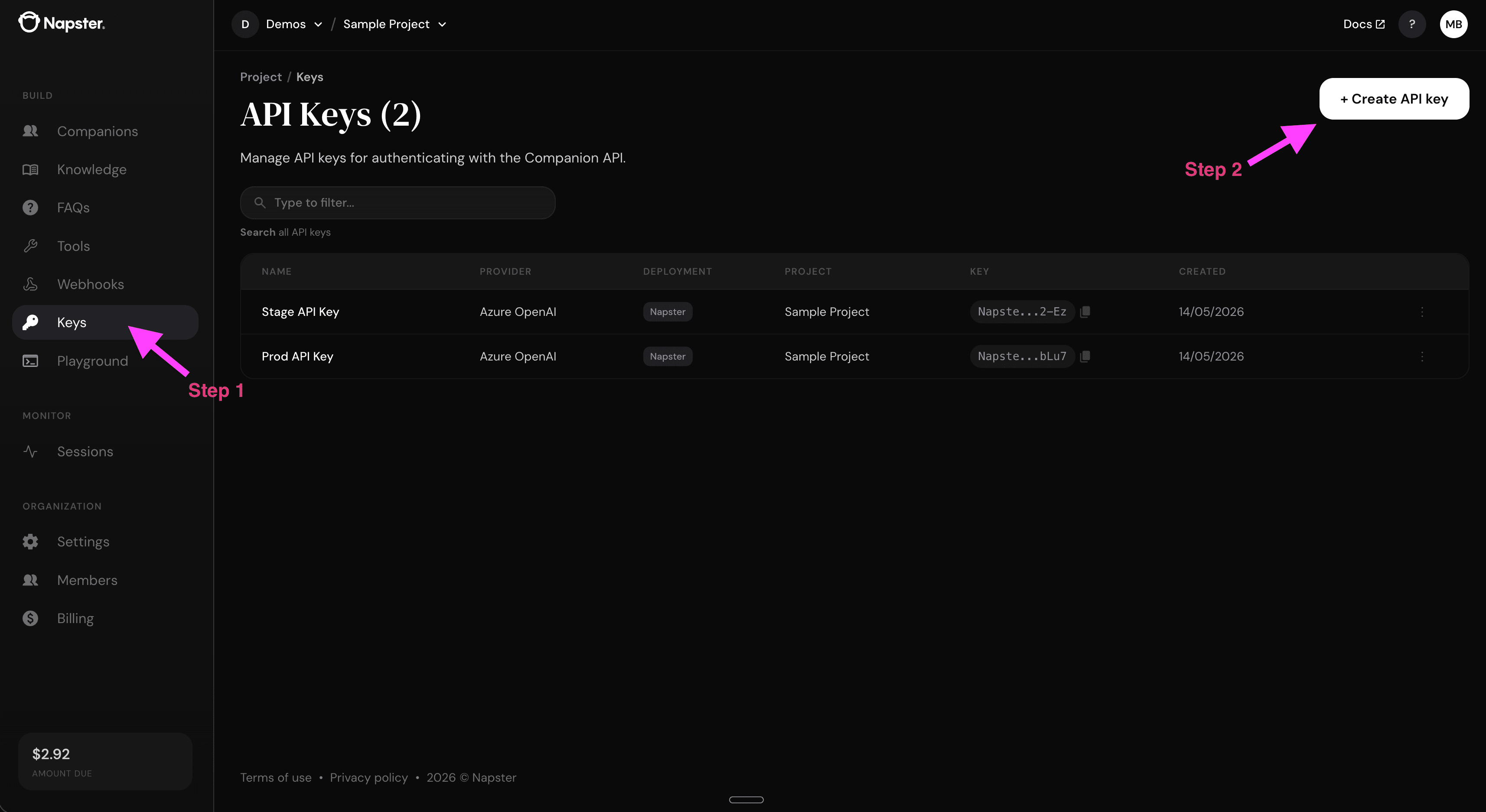
Open the Napster dashboard and select your organization and project from the top navigation. Then click Keys in the left sidebar under Build.
Create a new API key
Click the + Create API key button in the top right corner.
Configure the key
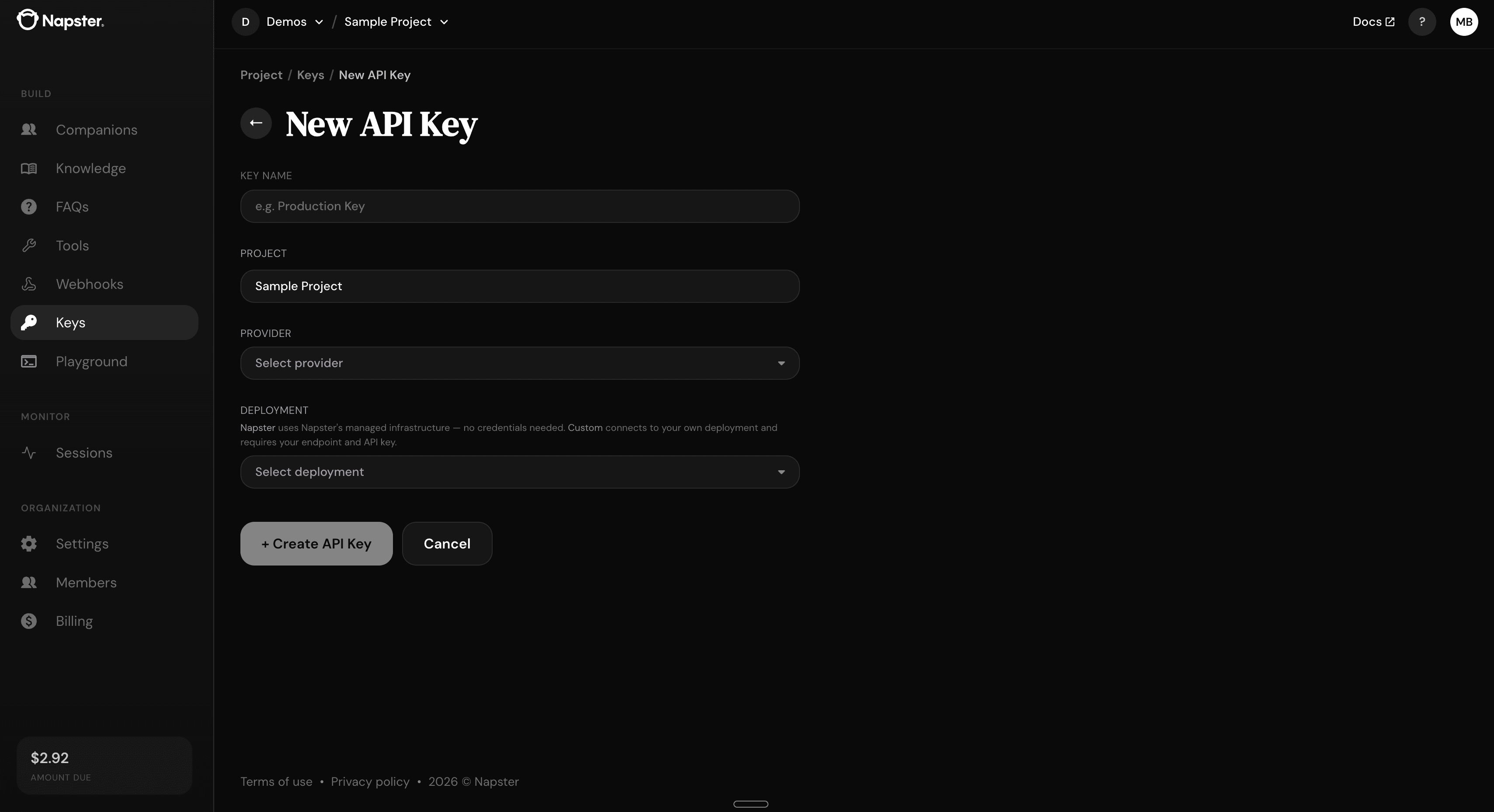
Fill in the form:
| Field | Description |
|---|---|
| Key Name | A descriptive label (e.g. Stage API Key, Prod API Key) |
| Project | Automatically set to your current project |
| Provider | Choose your LLM provider (see below) |
| Deployment | Only applies to Azure OpenAI. Napster (managed infrastructure, no credentials needed) or Custom (connects to your own Azure OpenAI deployment, requires your endpoint and API key) |
Providers
| Provider | Description |
|---|---|
| Azure OpenAI | Default provider. Works with all channels including phone. |
| Humain | Powered by Allam, an Arabic-first foundation model built by HUMAIN in Saudi Arabia with strong dialect coverage and cultural alignment. Best for Arabic-language agents. Not enabled by default — contact us to request access. |
Click + Create API Key to generate the key.
Store the key
Save the key as an environment variable in a gitignored .env file:
NAPSTER_API_KEY=your-api-key-hereAll API requests use the X-Api-Key header for authentication:
curl https://companion-api.napster.com/public/companions/napster-stock?pageSize=1 \
  -H "X-Api-Key: $NAPSTER_API_KEY"
A 200 response confirms your key is working.
Next steps
- Authentication — full details on how authentication works
- Quickstart — build and deploy your first Omniagent