Connect a Microsoft Foundry Agent
Give the Napster API access to your Microsoft Foundry agent
This guide connects an agent you've built on Microsoft Foundry to the Napster API. Your agent keeps its instructions, model, tools, and knowledge in Foundry; the Napster API connects to it and gives it a face — a lifelike video avatar on top of your existing agent logic.
You do two things: give Napster access to your Foundry resource, and prepare the agent in Foundry.
Foundry agents don't support digital twins or the SIP and VoIP phone channels yet.
Microsoft Foundry support on the Napster API is not enabled by default. Contact us to turn it on for your Napster organization.
Before you begin
You need:
- A Foundry project with a Prompt agent.
- Permission to assign roles on the Foundry resource in the Azure Portal — Owner, User Access Administrator, or Role Based Access Control Administrator.
- Access to the Napster dashboard.
Give Napster access to your Foundry resource
The Napster API signs in to your Foundry resource as the Napster.API application. Assign it the Foundry User role so it can read your agent and open voice sessions with it.
- In the Azure Portal, open the Foundry resource that contains your project.
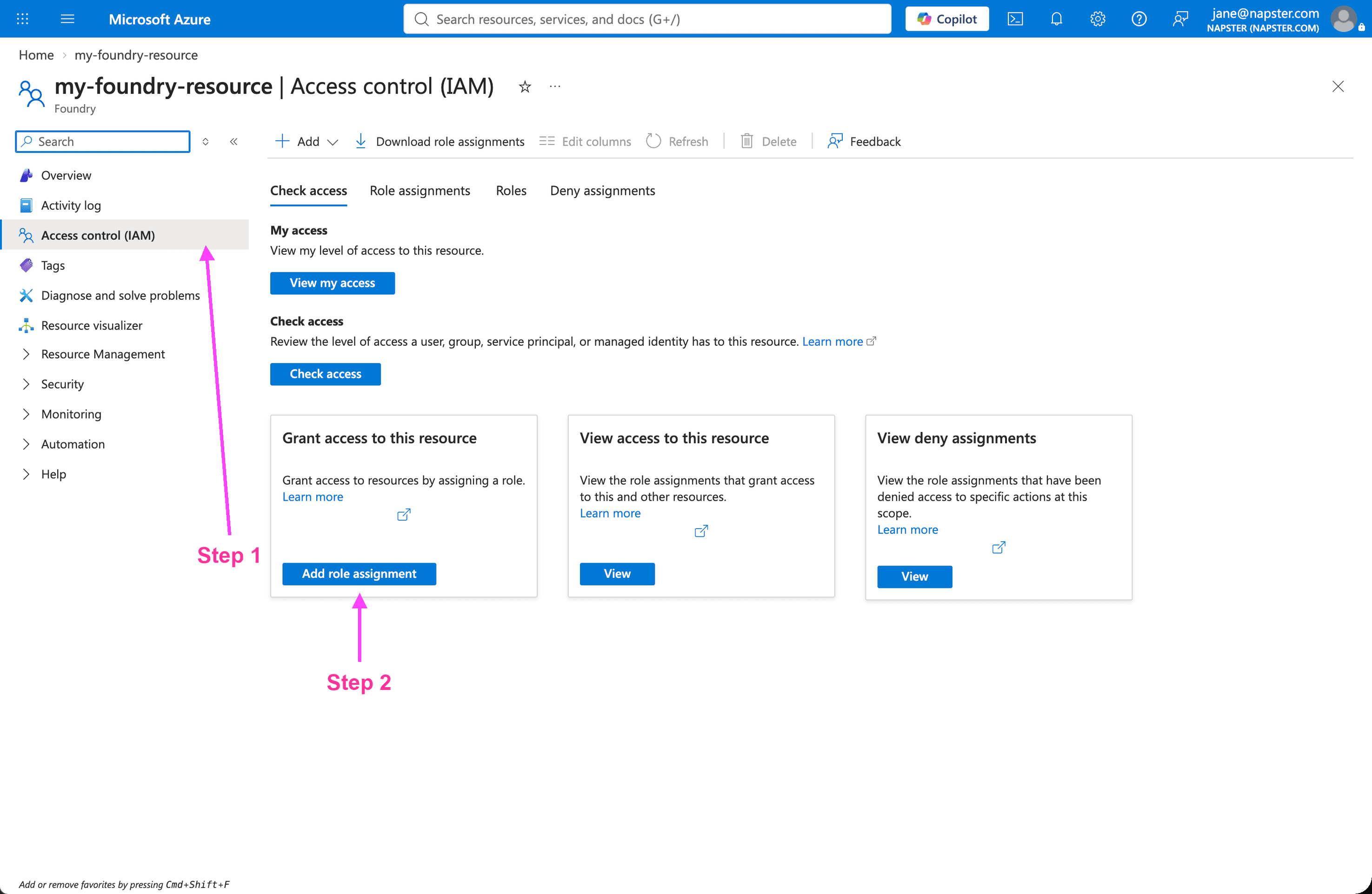
- In the left menu, select Access control (IAM).
- Select Add role assignment (or + Add → Add role assignment).
-
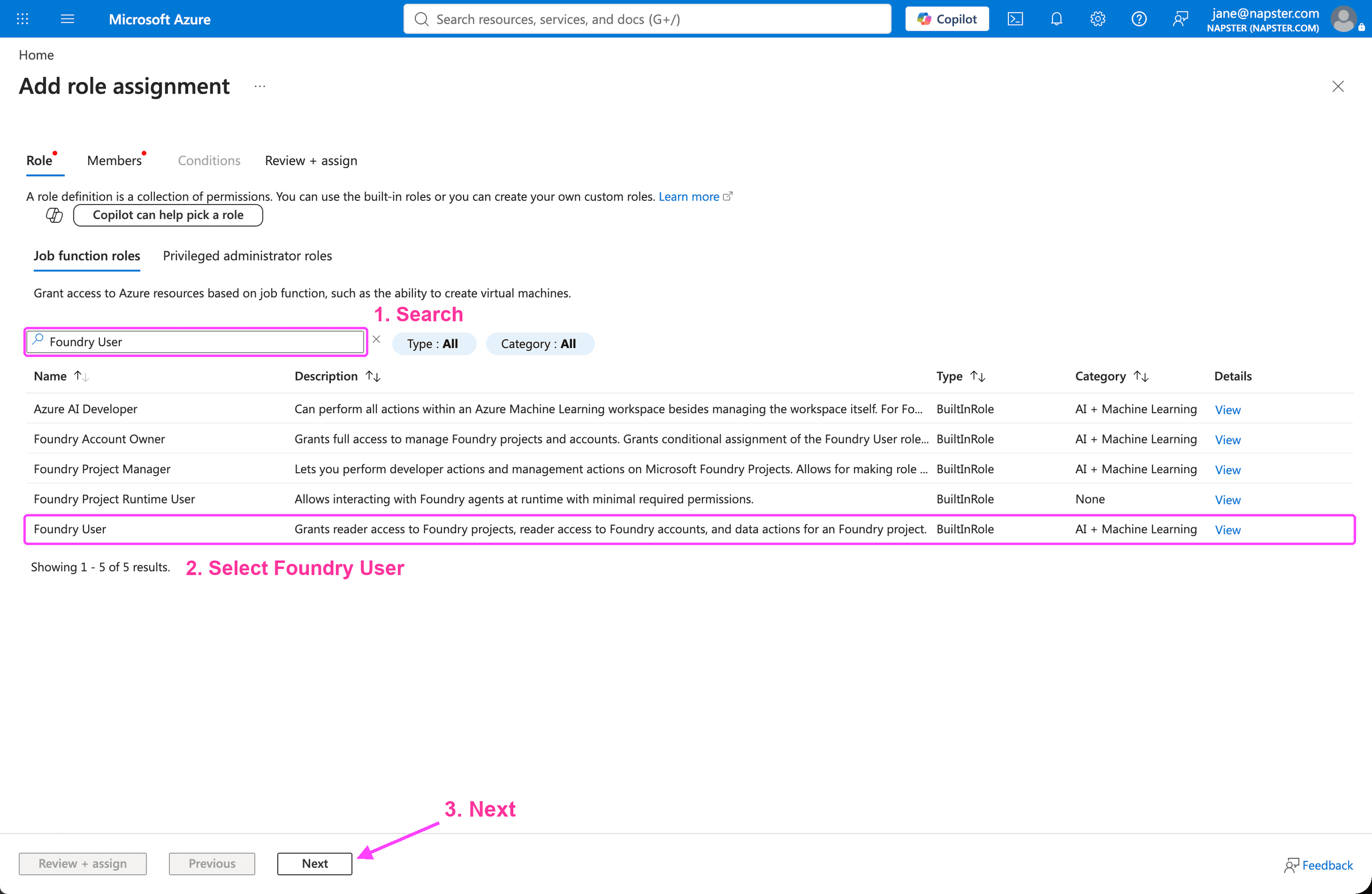
On the Role tab, search for Foundry User, select it, and click Next.
-
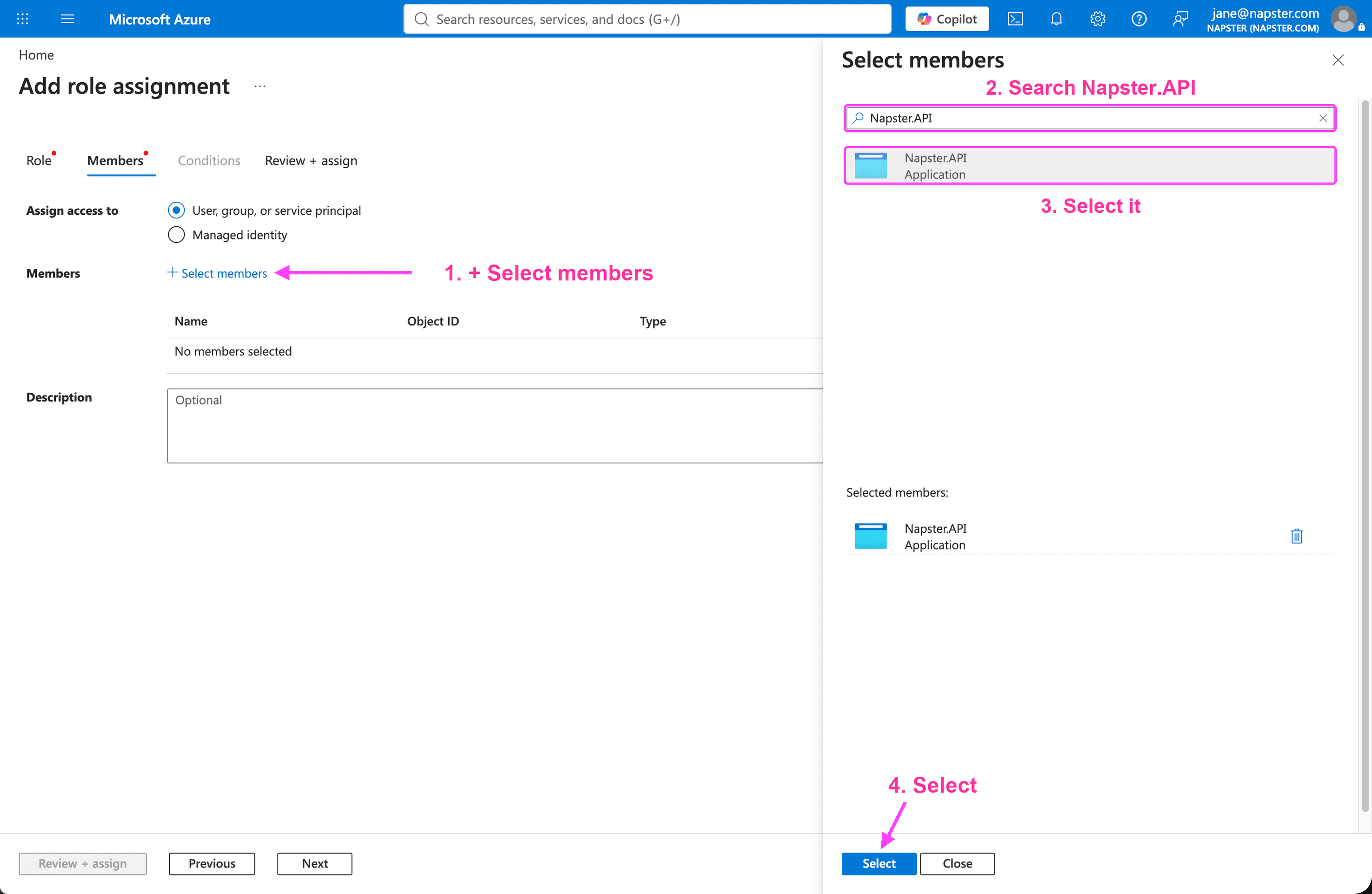
On the Members tab, keep Assign access to set to User, group, or service principal, then click + Select members.
-
Search for Napster.API, select it, and click Select.
-
Click Review + assign, check that the role is Foundry User and the member is Napster.API, then click Review + assign again to confirm.
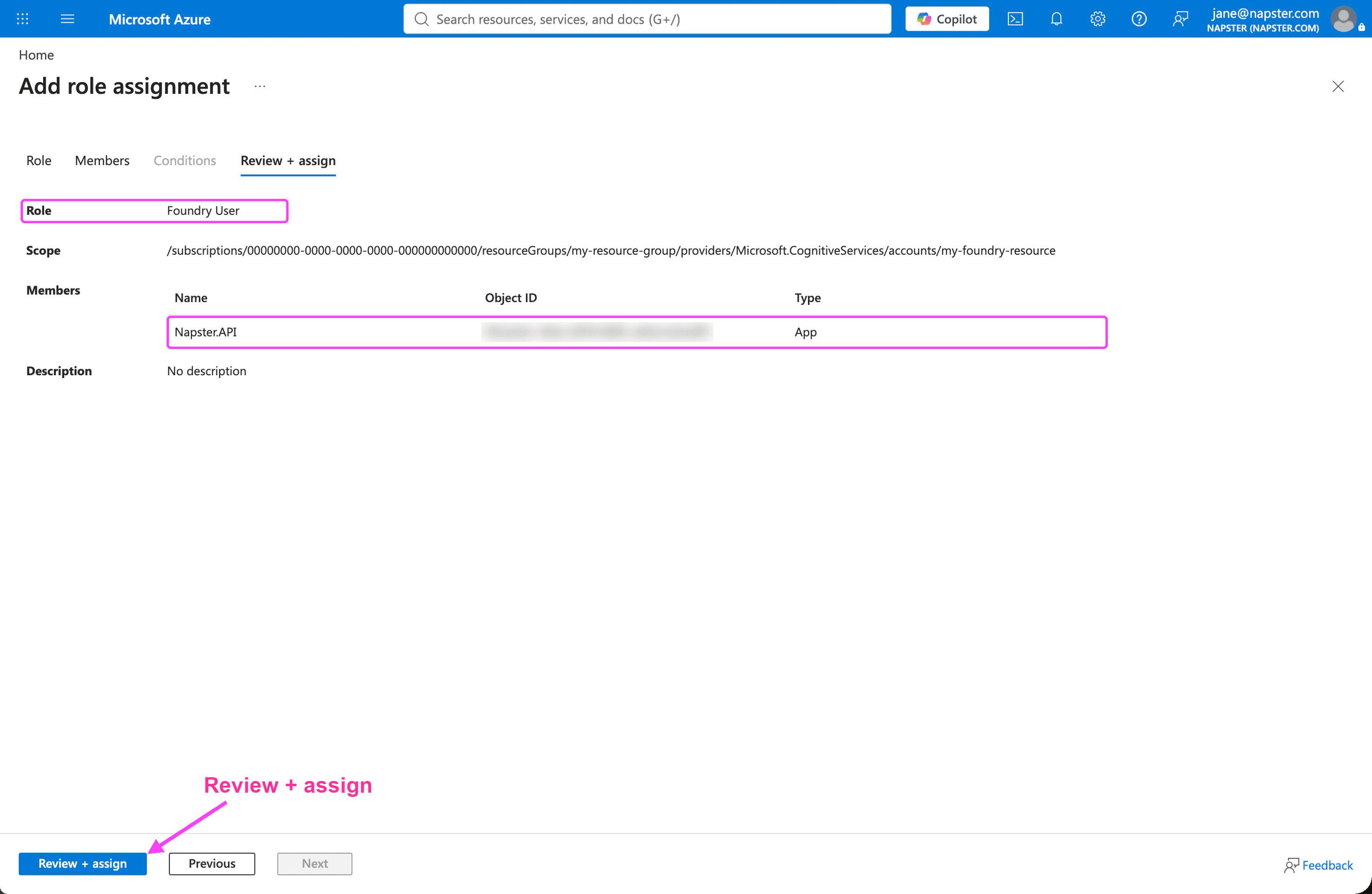
Without this role assignment, sessions fail to start — Azure rejects Napster's sign-in with 401 Unauthorized. A new role assignment can take a few minutes to take effect.
Prepare the agent in Foundry
The Napster API connects to Foundry agents that meet two requirements:
| Requirement | Where to check it |
|---|---|
| Interaction type is Text | The Interaction type column on the Agents page. Agents with the Voice interaction type aren't supported. |
| Voice mode is on | The Voice mode switch at the top of the agent's Playground tab |
If Voice mode is already on, move on to step 3. If it's off, open your agent in Microsoft Foundry, turn on Voice mode, and click Save.
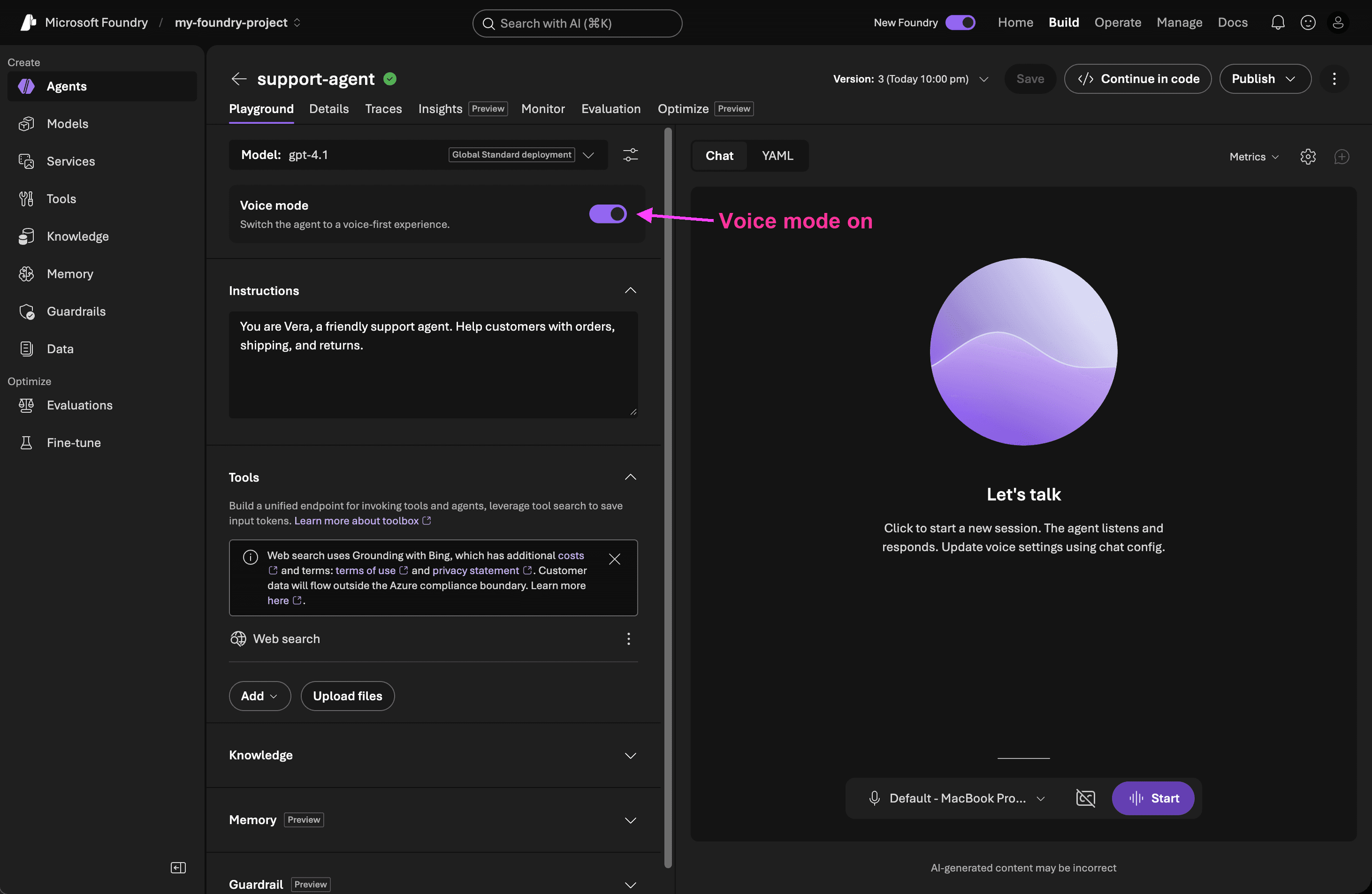
The voice you pick in the agent's voice settings is the voice your Omniagent speaks with.
Create the API key
Open the Napster dashboard, select your organization and project, and go to Keys → + Create API key. Then:
- Enter a Key Name.
- Under Architecture, select Other.
- Under Platform, select Microsoft Foundry.
- Fill in the Foundry fields:
| Field | Where to find it |
|---|---|
| Foundry project endpoint | Your project's Home page in Microsoft Foundry → Project endpoint. It looks like https://<resource>.services.ai.azure.com/api/projects/<project>.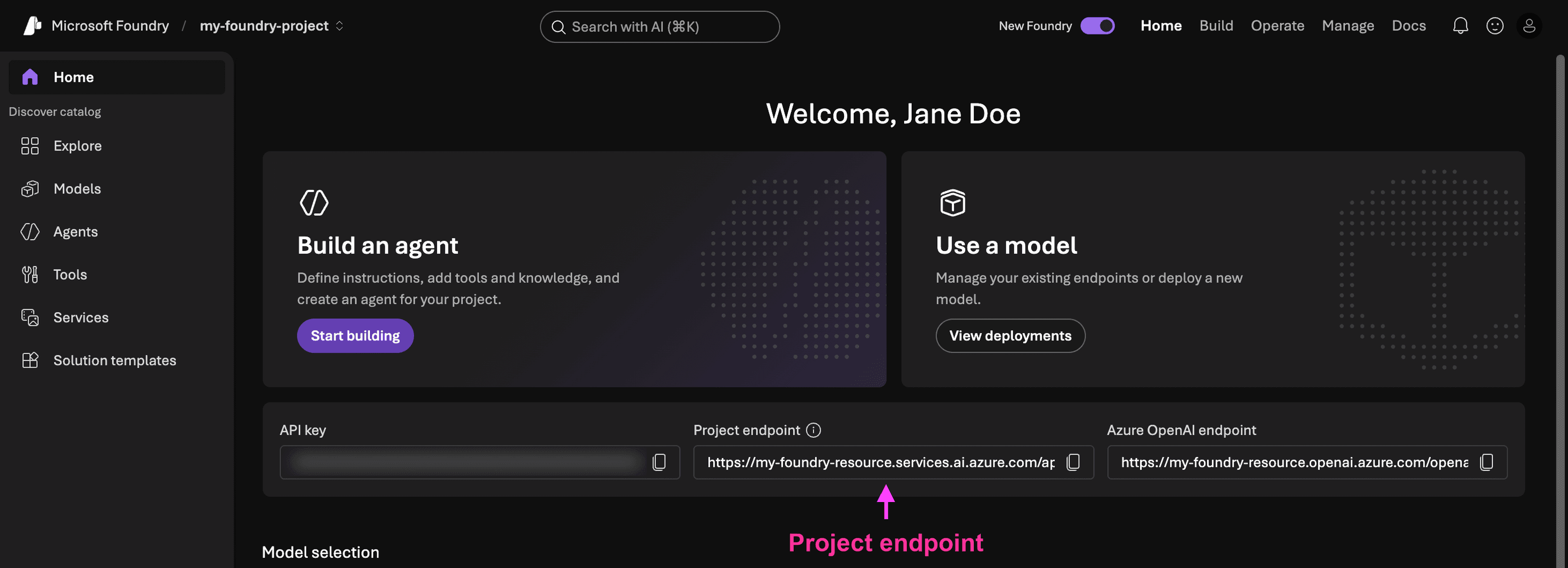 |
| Agent name and Agent version | The project's Agents page. Use the name exactly as listed and the number in the Version column, e.g. support-agent and 3.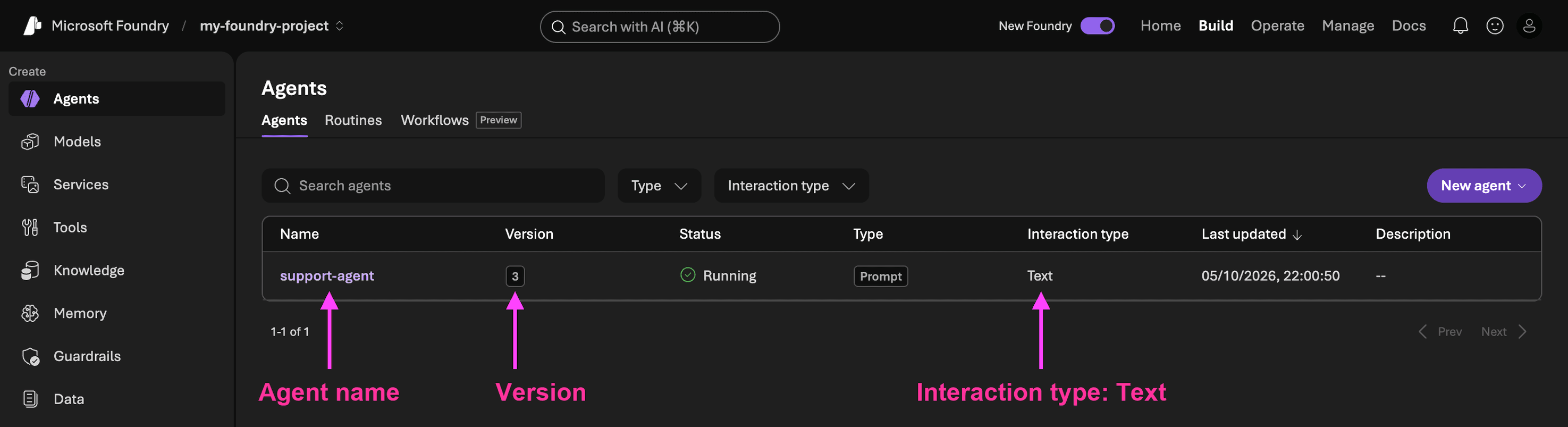 |
| Tenant ID | In the Azure Portal, Microsoft Entra ID → Overview → Tenant ID.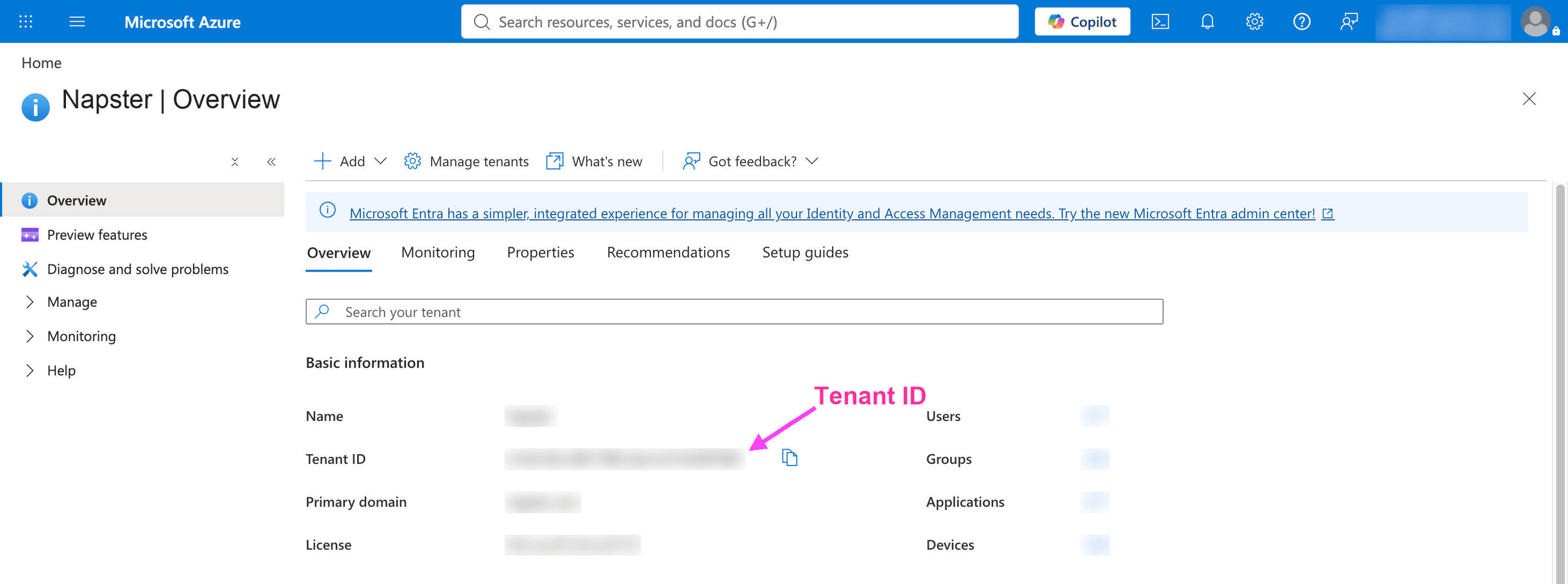 |
With Other and Microsoft Foundry selected, the form looks like this. All four Foundry fields are required:
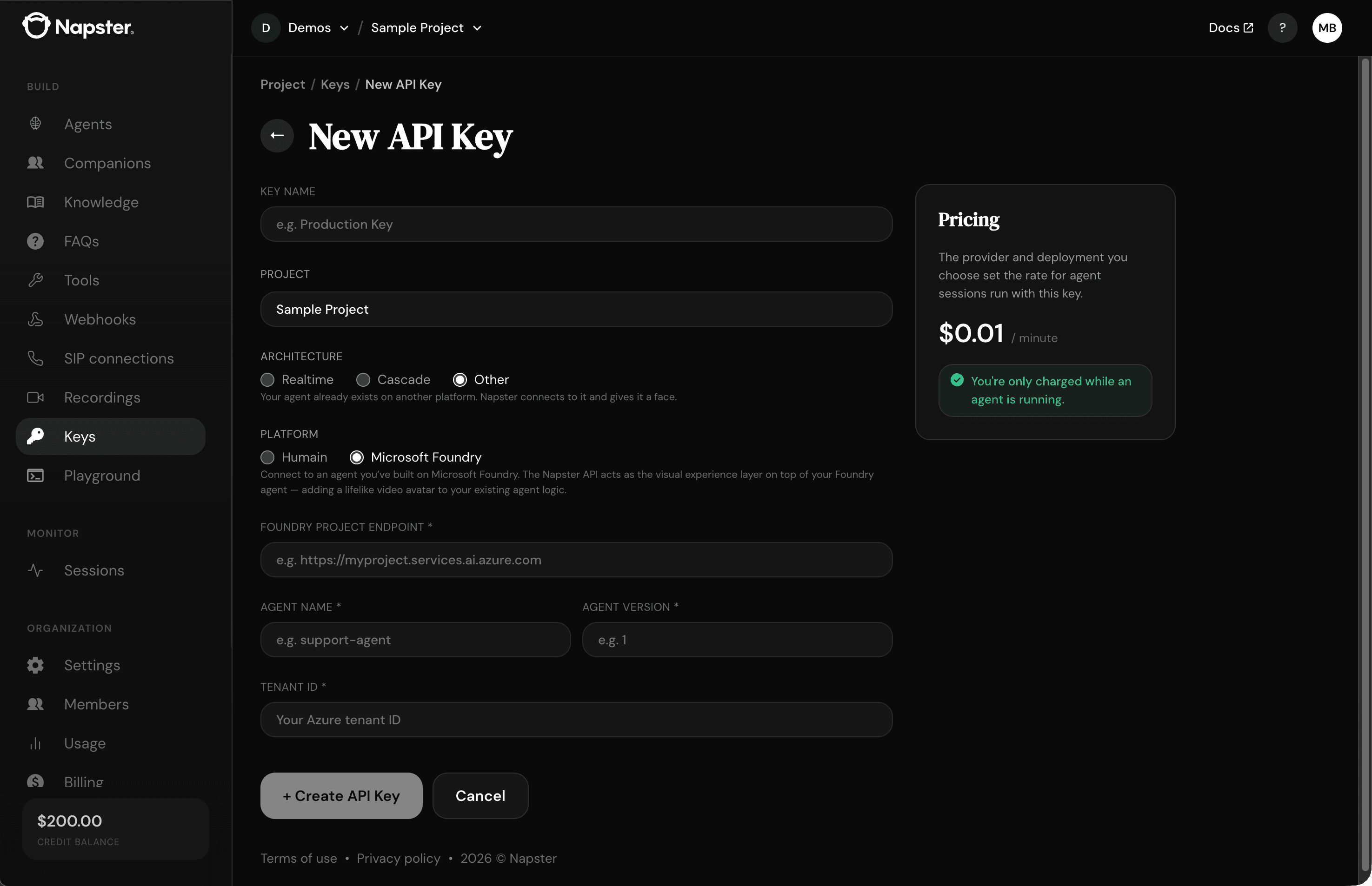
Click + Create API Key and copy the key. See Create an API key for how to store it.
Create an Omniagent with the key
Use the key the same way as any other key. Every Omniagent you create with it runs your Foundry agent:
curl -X POST https://companion-api.napster.com/public/agents \
  -H "X-Api-Key: $NAPSTER_API_KEY" \
  -H "Content-Type: application/json" \
  -d '{
    "companionId": "comp_abc123",
    "name": "Support Agent",
    "providerSettings": {}
  }'
The response returns an agent id (API reference). Deploy the agent to a channel — for example, embed it on your website — and start a session to test it.
What changes on a Foundry key
Your agent's behavior comes from Foundry, so some Napster API settings work differently:
- Model, tools, and knowledge come from your Foundry agent. To change them, edit the agent in Foundry, save, and update the Agent version on your key.
- Tools you define on the Napster API aren't used — add tools to the agent in Foundry instead.
set_settingsisn't supported. See Client commands.- Digital twins and the SIP and VoIP channels aren't supported.
Troubleshooting
| Symptom | Cause | Fix |
|---|---|---|
Session fails to start; Azure returns 401 | Napster.API has no role on the Foundry resource, the role assignment hasn't taken effect yet, or the tenant ID is wrong | Check the role assignment from step 1 and wait a few minutes. Confirm the tenant ID on the key matches the tenant of the Foundry resource. |
| Session fails to start; agent not found | Wrong project endpoint, agent name, or agent version | Copy the values again from Foundry. The agent name is case-sensitive. |
| The agent doesn't use the voice you set in Foundry | Voice mode is off for the version on the key, or the key points to an older version | Turn on Voice mode, save, and update the Agent version on the key. |
Next steps
- Create an API key — all architectures and platforms
- Configuration — the settings that apply to your Omniagent